toro4n – design Neo4j graph data models together
Sketch your schema on the canvas, or let Claude or ChatGPT draft it for you. Invite your team and shape it together, live. When it's ready, take a Cypher script straight to Neo4j.
Open toro4n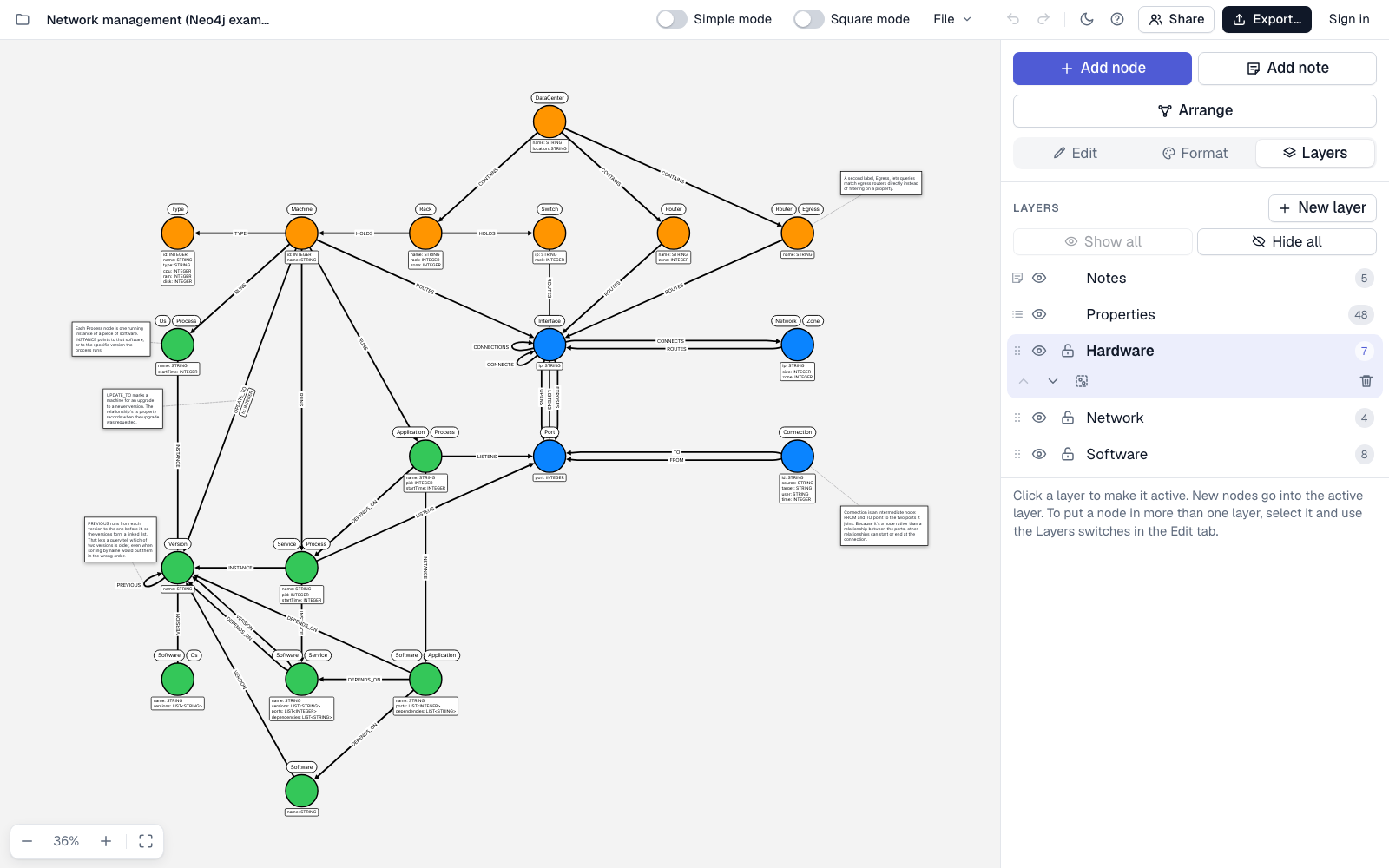
From first sketch to Cypher
-
Model right on the canvas. Double-click a node or relationship to edit it in place. Give each property a type, and mark it Unique or Required to add a constraint. Have properties in JSON, a
CREATE TABLEstatement, or a spreadsheet? Paste them all in at once. Labels, relationship types, and property keys follow Neo4j's naming conventions automatically:Person,ACTED_IN,firstName. - Work in layers. Split a large model into layers you can show, hide, or lock, so you can focus on one part at a time. A node can belong to more than one layer. Hide the Properties layer to clear every property off the canvas in one click.
- Leave notes. Capture decisions and open questions right beside the nodes and relationships they're about. Attach a note and it moves with them. Notes never appear in your Cypher export.
- Show it your way. Turn on Simple mode for a clean view with just names and relationship types, ideal when you're presenting. Square mode turns every node into a card with its properties inside.
- Tidy up in one click. Arrange untangles crossing relationships and spreads out nodes, notes, and relationship types so none of them covers another.
- Take it to Neo4j. Get a Cypher script complete with your constraints, or download the model as JSON, SVG, or PNG. Export the whole model or just the layers you can see.
- Bring in what you have. Import a model file, paste a list of names to turn them into nodes, or pull in the schema of an existing Neo4j database. Open it as a new model, or merge it into the one you're working on.
- Work together in real time. Save a model online and invite teammates by email to edit or view it. You'll see each other's changes as they happen, and Version history lets you restore an earlier version. You can also sort your online models into folders only you can see.
- Let AI draft it. Connect Claude, ChatGPT, or any other MCP client, then ask it to build a model in your account from a prompt, a document, or an existing schema. How to connect.
- Stored in the EU and private by default. Online models are hosted within the EU, encrypted in transit and at rest, and backed up automatically as you work. Only you and the people you invite by email can open them. There are no public links.
Use toro4n from an AI assistant
Connect Claude, ChatGPT, or any other MCP client to your toro4n account with this address:
https://toro4n.com/mcp- Claude (claude.ai, desktop, and mobile): go to Customize › Connectors › Add custom connector, paste the address, and click Connect.
- ChatGPT: in Settings › Apps, turn on developer mode, create an app with the address, and choose OAuth for authentication.
-
Claude Code, Cursor, VS Code, and other MCP tools: add a remote HTTP
MCP server, for example
claude mcp add --transport http toro4n https://toro4n.com/mcp.
Once it's connected, ask your assistant to draft a graph data model from a document or to update one already in your account. If you have the model open, you'll see its changes appear on the canvas as it works. Before every change, we save the model's previous version in Version history, so you can go back if you need to. To see or disconnect your assistants, go to Account in toro4n.
Explore a sample model
Open the data center sample, based on an official Neo4j example, and explore it on the canvas. Notes beside the model explain the modeling choices. Prefer to read first? Each sample model page walks through its model and shows the Cypher.
New to toro4n?
The guide has a short page for every feature, from drawing your first relationship to working on a model with your team.
Frequently asked questions
What is toro4n?
toro4n is a tool for designing Neo4j graph data models with your team. Sketch the schema on the canvas, or ask Claude or ChatGPT to draft it, and the people you invite can edit it with you in real time. When the model is ready, toro4n gives you a Cypher script to run in Neo4j.
Does toro4n export Cypher for Neo4j?
Yes. Export gives you a ready-to-run Cypher script of CREATE statements, including uniqueness and existence constraints for the properties you've marked Unique or Required. Existence constraints need Neo4j Enterprise Edition or Aura. You can also export JSON, SVG, or PNG, and limit any export to the visible layers.
Do I need to install anything?
No. toro4n runs in your browser at toro4n.com. Sign in with Google or an emailed code to save models to your account and work on them with your team.
Can multiple people work on the same model?
Yes. Save a model online and invite teammates by email as editors or viewers. Everyone who has the model open sees each other's changes, selections, and pointers as they happen. Earlier versions are saved automatically, and you can restore any of them.
Can toro4n import the schema of an existing Neo4j database?
Yes. Go to File › Import…, choose Neo4j database, run the two queries we provide in Neo4j Browser, and paste the results back. toro4n imports your labels, relationship types, property types, and constraints without ever connecting to your database.
Can an AI assistant draw a model in toro4n?
Yes. Connect Claude, ChatGPT, or any other MCP client to https://toro4n.com/mcp, sign in, and allow access. Your assistant can then create and edit models in your account from a prompt, a document, or an existing schema. If you have the model open, you'll see its changes as they happen. Before every change, we save the model's previous version in Version history, so you can go back if you need to.
Where are my models stored, and who can access them?
Models you haven't saved online stay in your browser on your device. Online models are stored within the EU, encrypted in transit and at rest, and backed up automatically as you work. Only you and the people you invite by email can open them; there are no public links. For the details, see How we handle your data and the Security tab in the app's Help (the ? button).